),
select 'Image' from the 'Jump' menu, press 'F2' when the image field is selected or right-click into the image area. You
may also simply drag and drop an image file to the image area.
),
select 'Image' from the 'Jump' menu, press 'F2' when the image field is selected or right-click into the image area. You
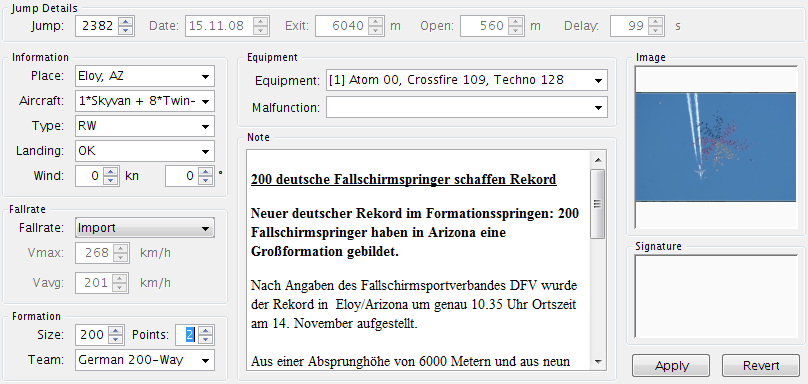
may also simply drag and drop an image file to the image area.The jump details view shows the details for the currently selected jump. The details will be blank when multiple jumps are selected.
Use 'Tab' to cycle through the fields or use the mouse to select a field. Most values can be changed by typing directly into the field.
The spinner fields can be changed by clicking on the up and down arrows on the right side of the firight-clickeld or by using the up and down arrows on your keyboard. When editing the Date field, either press 'F2' or (Ctrl-Click on Mac) to pop-up a date chooser for easy date and time selection.
To edit the 'Image' field, click the 'Image' toolbar button (),
select 'Image' from the 'Jump' menu, press 'F2' when the image field is selected or right-click into the image area. You
may also simply drag and drop an image file to the image area.
Some fields (e.g. Place, Aircraft, etc.) - in addtion to be being regular, editable text fields - open a pick list when you click on the down arrow on the right side of the field or press the down cursor key when the field is selected. Those pick lists are populated with the values already present in your logbook. When you start typing, auto completion will automatically scroll to the first matching entry in the list.
When a jump has been imported from a GPS, the 'Wind' fields will be prepopulated with the average wind in the Wingsuit Performance Competition Window (3000-2000m). This assumes the airplane has been flying at least roughly a circle with constant speed (TAS) while climbing through the Compettion Window.
Add '(Night)', '(Coach)' or '(Video)' to a jump type, e.g. 'RW (Video)' to flag it and to count it in the statistics.
Add '(Reserve)' to a malfunction, e.g. 'Line Twists (Reserve)' to flag it and to count it in the statistics.
When 'Standard', 'Vertical' or 'Custom' fallrate is selected in the 'Fall Rate' drop down, the 'Delay' field is disabled and the delay is automatically calculate based on exit and open altitudes (Note: The value of the 'Custom' fallrate can be changed in the Preferences). When a jump is imported from a freefall logger or GPS, the fallrate is set to 'Import' and all the data fields imported from the logger are locked. Set the fallrate to 'Manual' to unlock those fields.
The 'Note' field can be edited with the built-in editor. To open the editor, click the 'Edit Note' toolbar button
( ), select 'Edit Note' from the 'Jump' menu, press 'F2' when the note field is
selected or double-click the note field.
), select 'Edit Note' from the 'Jump' menu, press 'F2' when the note field is
selected or double-click the note field.
The signature field can not be edited, but jumps can be signed.
When editing a record, the 'Apply' and 'Revert' buttons will be enabled to apply/revert the changes.