Logger Selection
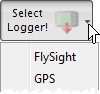
Select your logger by clicking the arrow of the logger combo box on the toolbar or by selecting 'Select Logger' from the 'File' nenu.
Supported loggers are AltiTrack, ProTrack (II), Neptune, N3 (A), Atlas, Skytronic (G)FX, FlySight and most consumer GPS.
Note: Before starting a download, set up any drivers (Serial Port, Infrared, USB-Adapters, etc.) as required by the logger manufacturer.
To start a download, click the 'Read Logger' toolbar button ( )
or select 'Read Logger' from the 'File' menu (Note: 'Logger' will be replaced with the selected logger type).
)
or select 'Read Logger' from the 'File' menu (Note: 'Logger' will be replaced with the selected logger type).
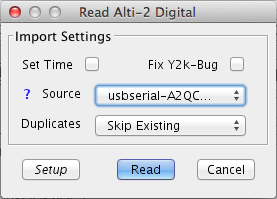
The download dialog will open where you can specify the 'Source' where logger data is read from. Depending on the logger type selected, available choices are the serial ports found on your system (COMx on Windows, usb-serialXXXXX On OSX), USB and File.
Hints: The blue question mark will attempt to locate the selected logger on your system. For file based import (e.g.
FlySight ), multiple files can be selected and imported at once.
The 'Duplicates' option specifies how to handle jumps on the logger which are already in your logbook: 'Skip' will skip existing jumps, 'Update' will update exisiting jumps and 'Append' will append all jumps from the logger to your existing loogbook, ignoring jump numbers on the logger and numbering them in sequence.
Some loggers can have their time set. Selecting the 'Set Time' option will synchronize your logger's internal clock to the clock of your computer.
Hint: With most loggers, you can simply plug-in the logger to start the doenlod from the currently selected logger.
After confirming this dialog, the download progress will be displayed in the status bar.
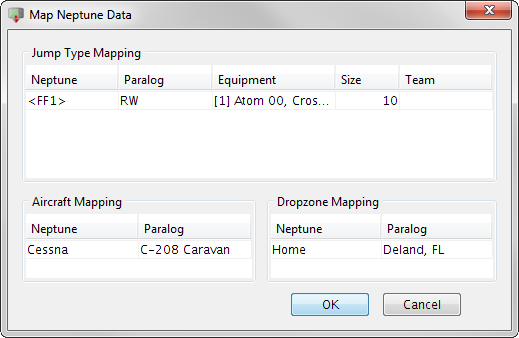
After the download has completed and when 'Expert Mode' is set in the Preferences, a dialog will open to a additional information to the downloaded jump details. The 'Jump Type Mapping' table allows you to map the jump type imported from the logger to a jump type, group size and team and the equipment used to store in Paralog. 'Aircraft Mapping' allows you to map the aircaft imported from the logger, 'Dropzone Mapping' allows you to map the aircaft imported from the logger when the logger supports it.
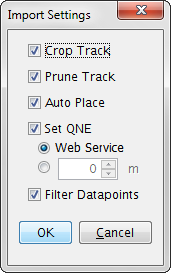
When imporing GPS data, after the download has completed and when 'Expert Mode' is set in the Preferences, a dialog will open to set several options on how to read the data: