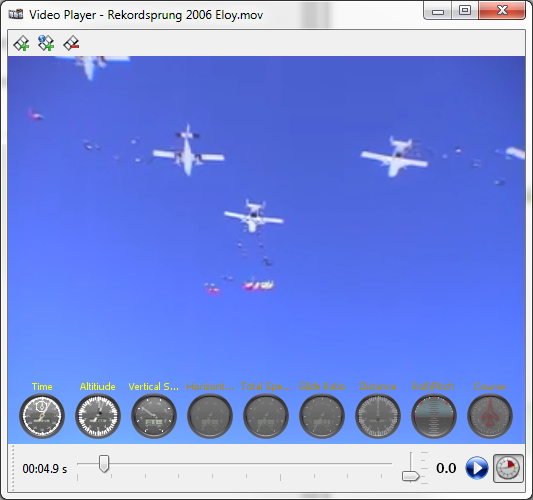
)
or select 'Video' from the 'Jump' menu to open the video player window.
)
or select 'Video' from the 'Jump' menu to open the video player window.Click the 'Video Player' toolbar button ()
or select 'Video' from the 'Jump' menu to open the video player window.
Note: The video player requires VLC installed on your system.
If VLC is not detected during start up, this feature will be disabled.
installed on your system.
If VLC is not detected during start up, this feature will be disabled.
Set a new video for this jump by clicking the 'Set Video' button ( ). This will open a
file-chooser where you can select from all the supported
video file formats. The video filename (not the video itself) will
be saved with the currently selected jump, so the video must
not be moved/deleted. You can also set a video from the web (YouTube only as of this writing) by clicking
the 'Set Web Video' button (
). This will open a
file-chooser where you can select from all the supported
video file formats. The video filename (not the video itself) will
be saved with the currently selected jump, so the video must
not be moved/deleted. You can also set a video from the web (YouTube only as of this writing) by clicking
the 'Set Web Video' button ( ). This will open a
textbox where you can paste the media URL.
). This will open a
textbox where you can paste the media URL.
Note: The video filename (not the video itself) will be saved with the currently selected jump, so the video must not be moved/deleted.
To remove a video, click the 'Remove Video' button ( ).
).
To synchronize the video and the jump profile, play the video until the exit position and press '0.0' ( ) to set the start offset of the video.
When the Profile Chart and the Details Dialog is showing, the location of the cursor will be synchronized to the current video position.
) to set the start offset of the video.
When the Profile Chart and the Details Dialog is showing, the location of the cursor will be synchronized to the current video position.
A click on the 'Show Instruments' button ( ) will overly airplane instruments with real-time data over the video.